
A step-by-step tutorial showing how to create a mood board to plan a room makeover and save time and money.
Learning to create a mood board has been central to our home makeover process. I’ve always found decision-making difficult, and when you’re planning a room, it’s easy to feel overwhelmed or second-guess choices. A mood board is the best remedy I’ve found for that indecision: it lets you experiment visually before you spend money or commit to a big purchase.
Seeing how colors, patterns, and textures work together on a board prevents costly mistakes and buyer’s remorse. A mood board also makes collaboration easier—if you’re renovating with a partner, it helps both of you agree on a clear direction before work starts.
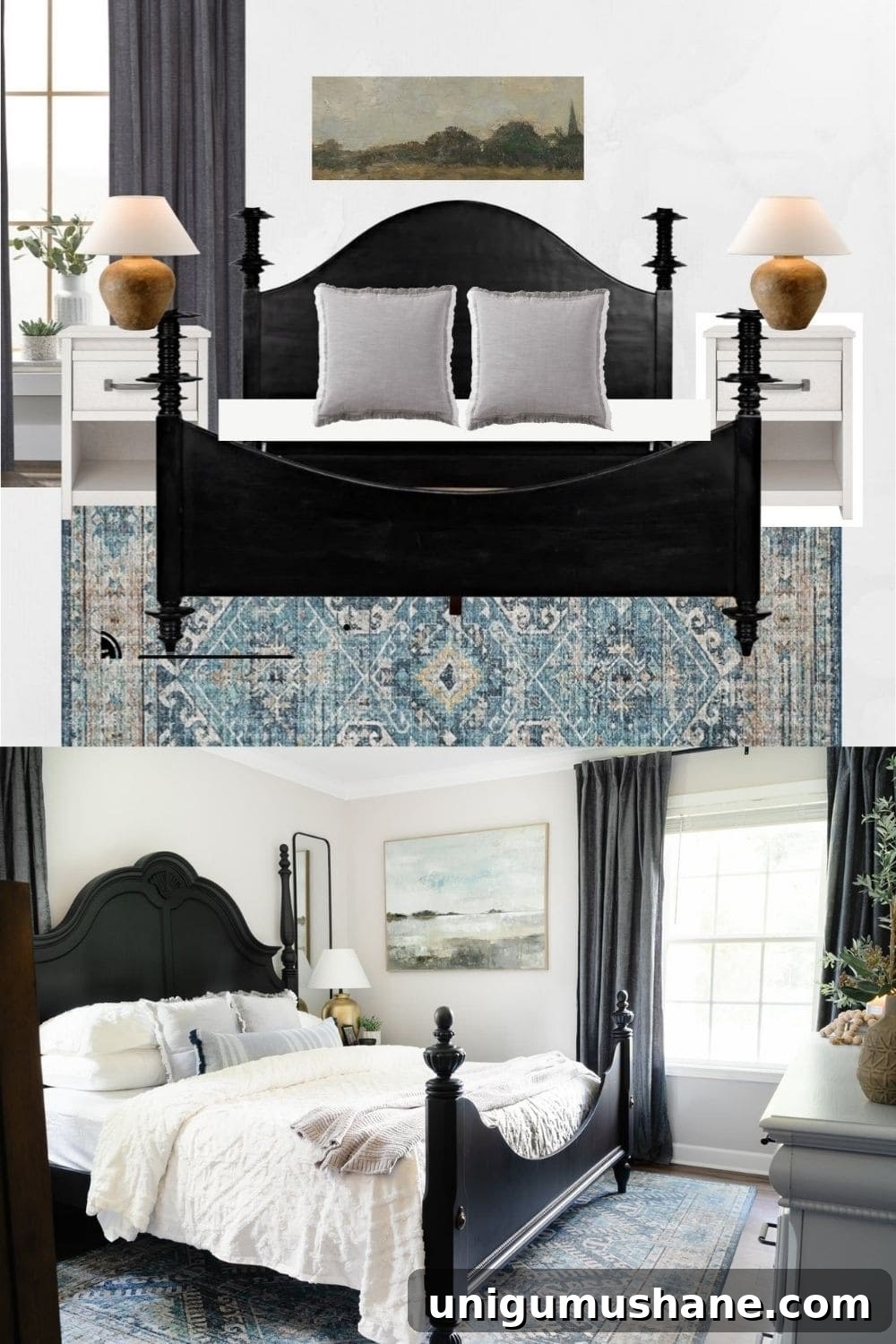
Rug | Curtains | Duvet Set | Gray Pillows | Blue Pillow | Mirror | Lamp (painted Rustoleum Metallic Gold) | Throw
(See the full bedroom makeover on the original project page.)
Why Create a Mood Board Before a Room Makeover
A mood board lets you “try on” design ideas before you buy. It shows you which elements pair well and highlights clashes early, so you avoid expensive regrets. If you’re redecorating with someone else, it’s a helpful tool to reach agreement on style, palette, and overall direction.
We always take time to assemble a mood board together before starting a makeover so we can both visualize the plan and move forward confidently.
With Regan’s little girl’s bedroom on our to-do list—transitioning the space from a nursery to a child’s room—this made a great opportunity to demonstrate the process.
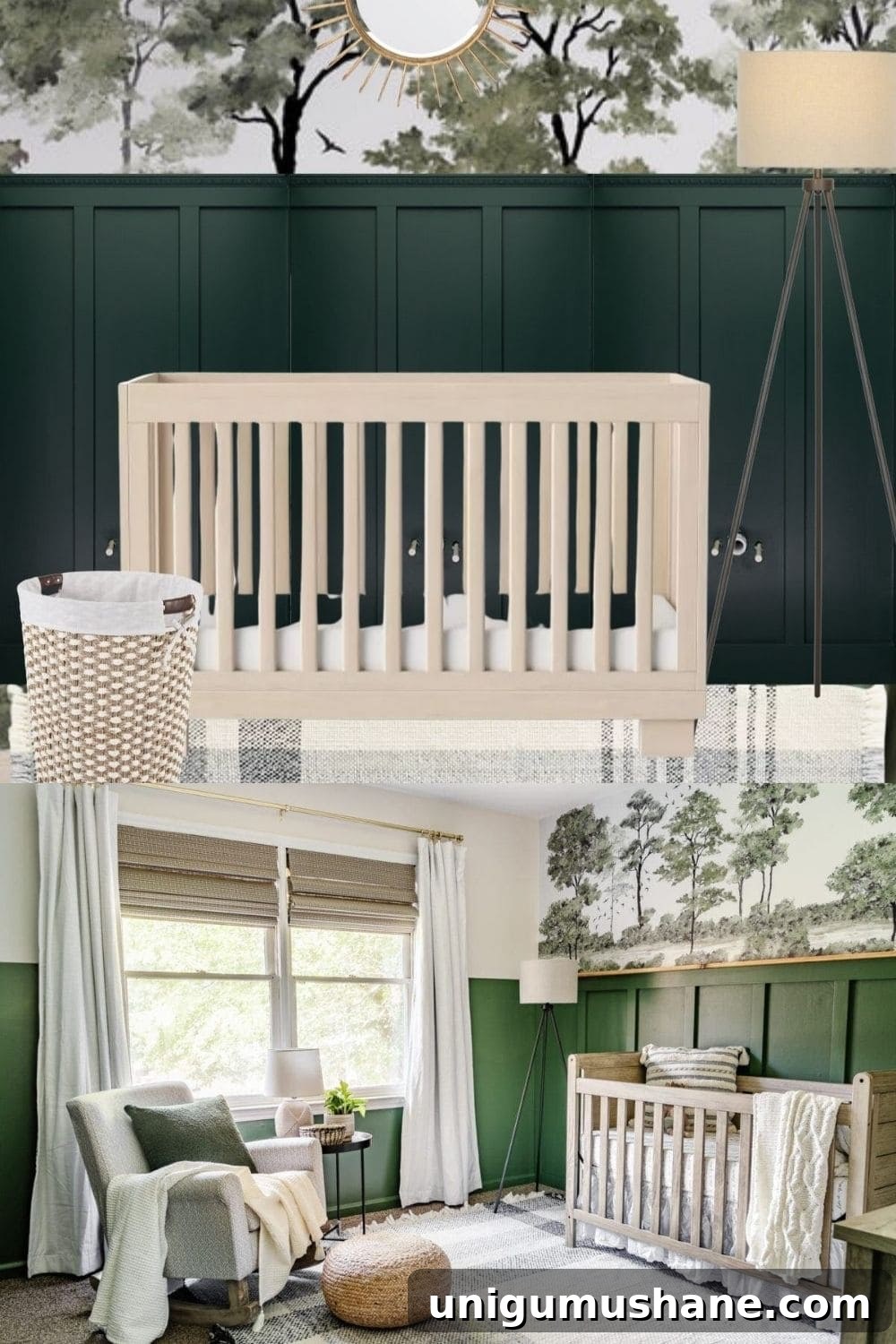
Rocking Chair | Rug | Pouf | Green Pillow | Cream Pillow | Throw | Table | Floor Lamp | Table Lamp | Mural
(See that nursery makeover for full details.)
What to Do Before You Start Your Mood Board
Collect inspiration first. Browse Pinterest, Instagram, blogs, and design websites to gather images, color ideas, and furnishings you like. Save inspiration images and screenshots to a single folder in Google Drive so everything is easy to access.
Create a Canva account if you plan to assemble a digital mood board. Canva offers both a free plan and a Pro trial; the free version is powerful enough for many projects, while the Pro trial can speed things up with extra features like the background remover.
This guide explains how to use Canva’s free and Pro tools to build a polished mood board for any room.
How to Create a Mood Board Design on Canva
UPDATE: A video tutorial demonstrating these steps is also available.
Follow these steps to make a mood board in Canva:
- Go to canva.com and click “Create a Design” at the top right.
- Search for “poster” and choose the orientation and size you prefer for your mood board canvas.
- Click “Uploads” on the left toolbar and upload the inspiration images and product photos you saved to your Drive.
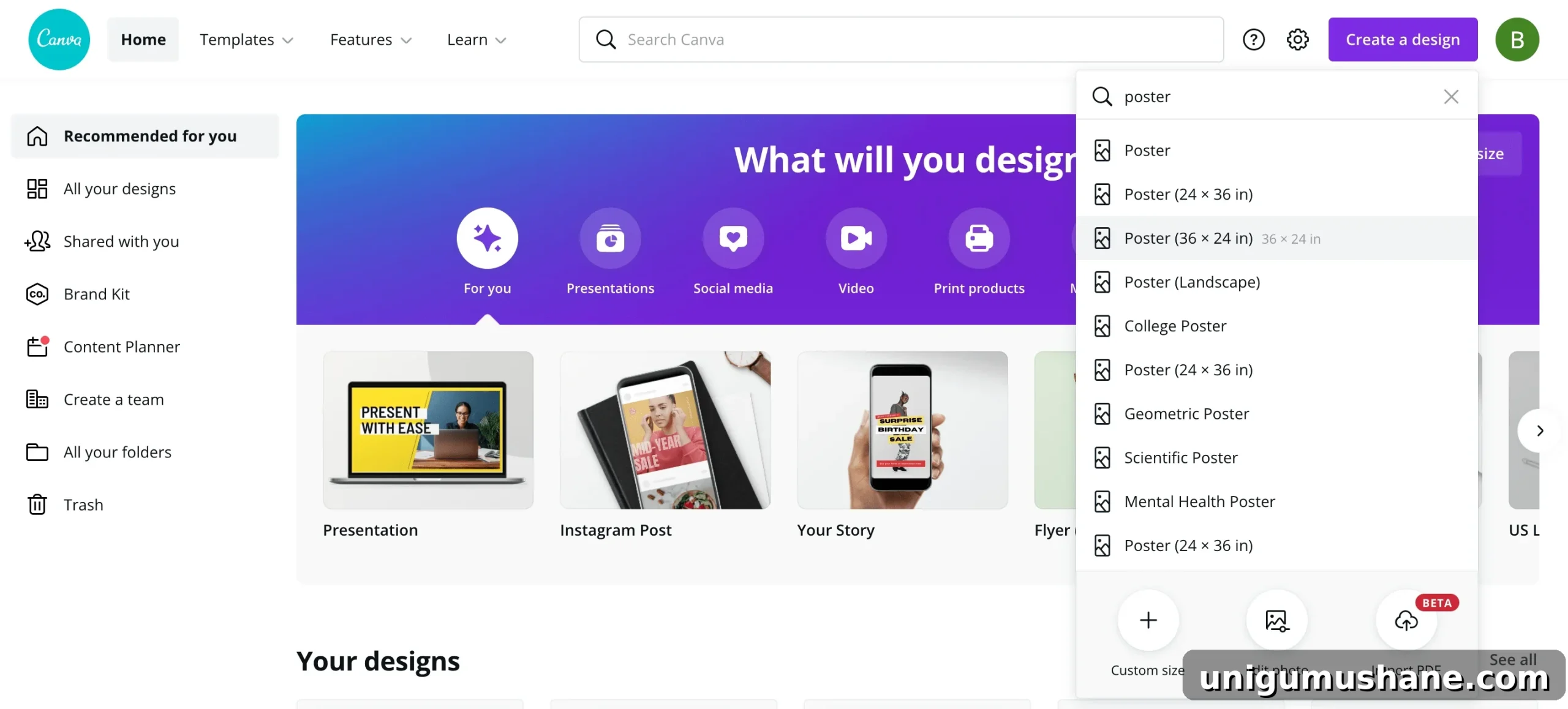
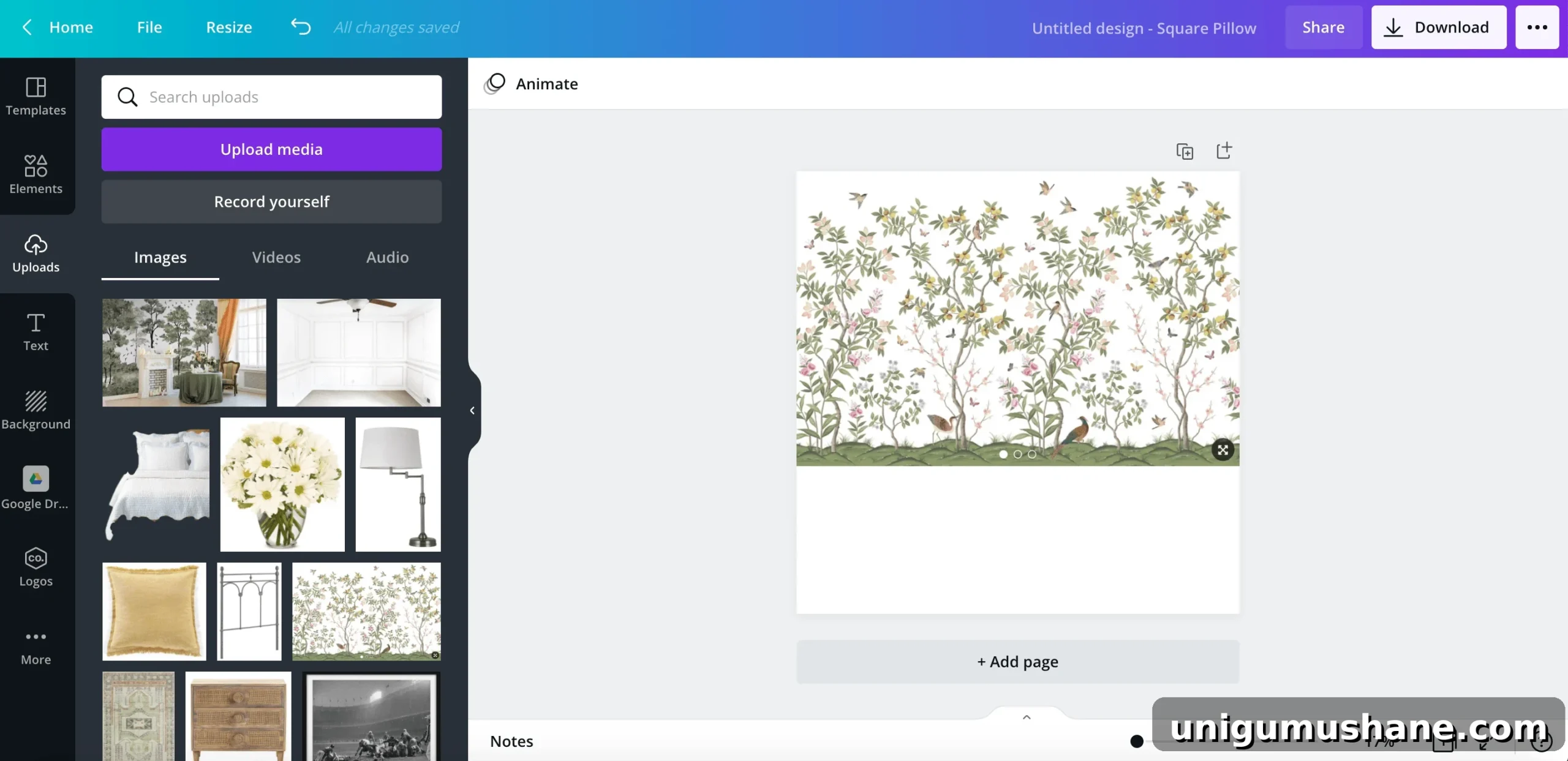
- Start by placing foundational elements like wallpaper, flooring, or a rug to establish the room’s base.
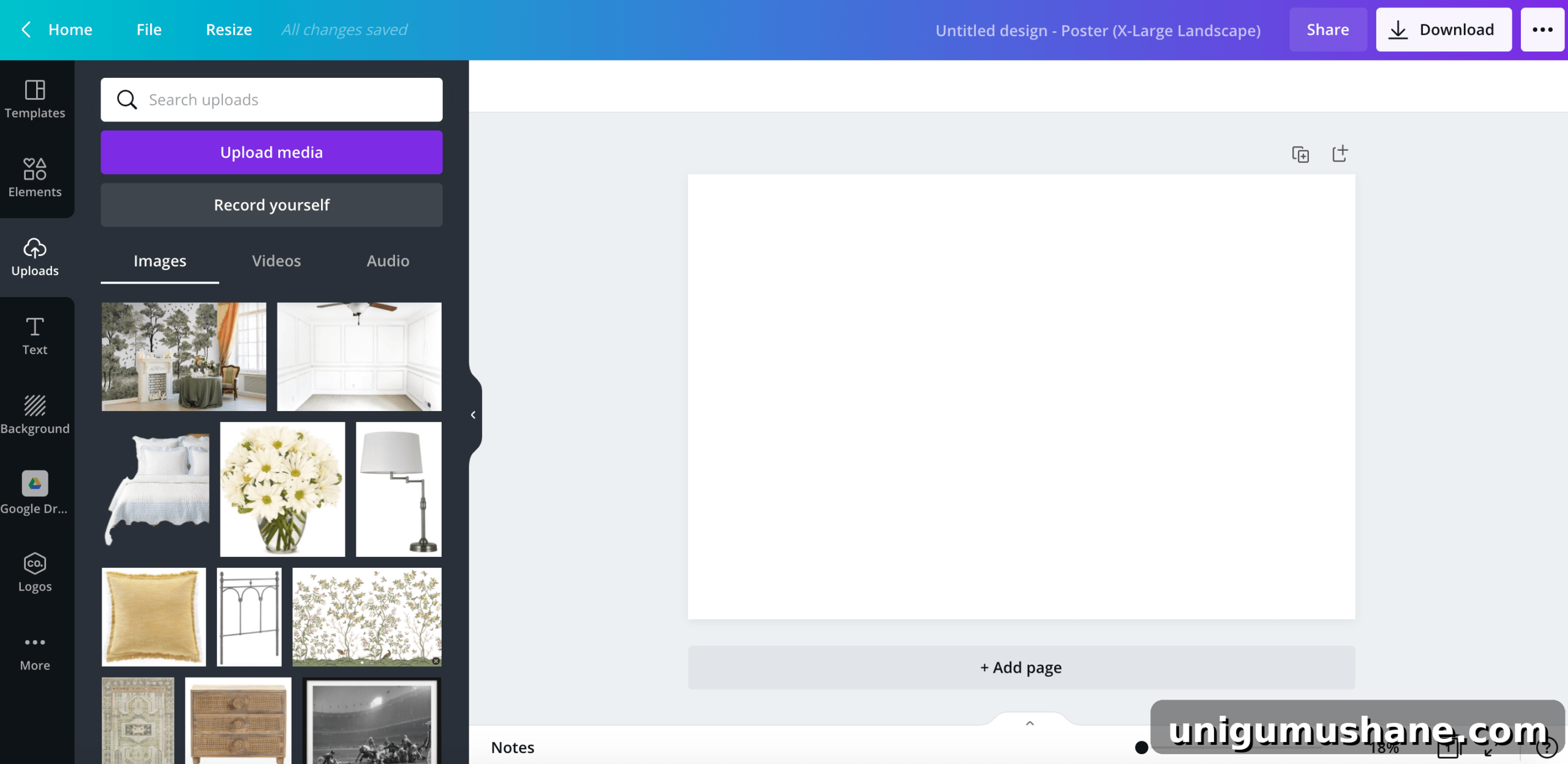
- Resize images by dragging the corner handles and reposition by clicking and dragging the image.
- Rotate images by selecting the circular rotate handle and turning the image until it fits the composition.
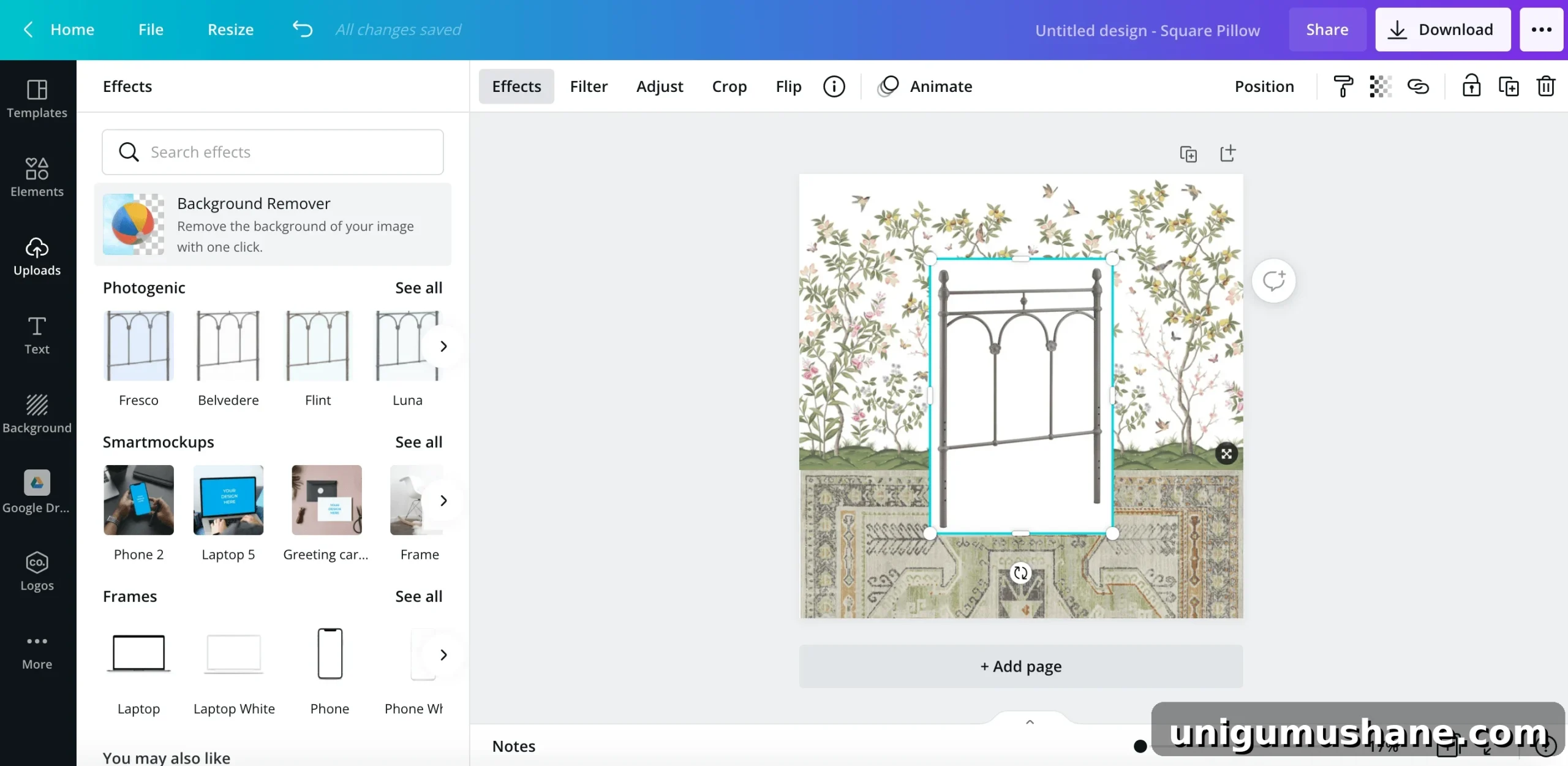
- To remove a background using Canva Pro: select the image, click “Effects,” then choose “Background Remover.”
- If you don’t have Canva Pro, use a free background removal tool (for example, Remove.bg). Upload the image, remove the background, save it, and then upload the edited image back into Canva.
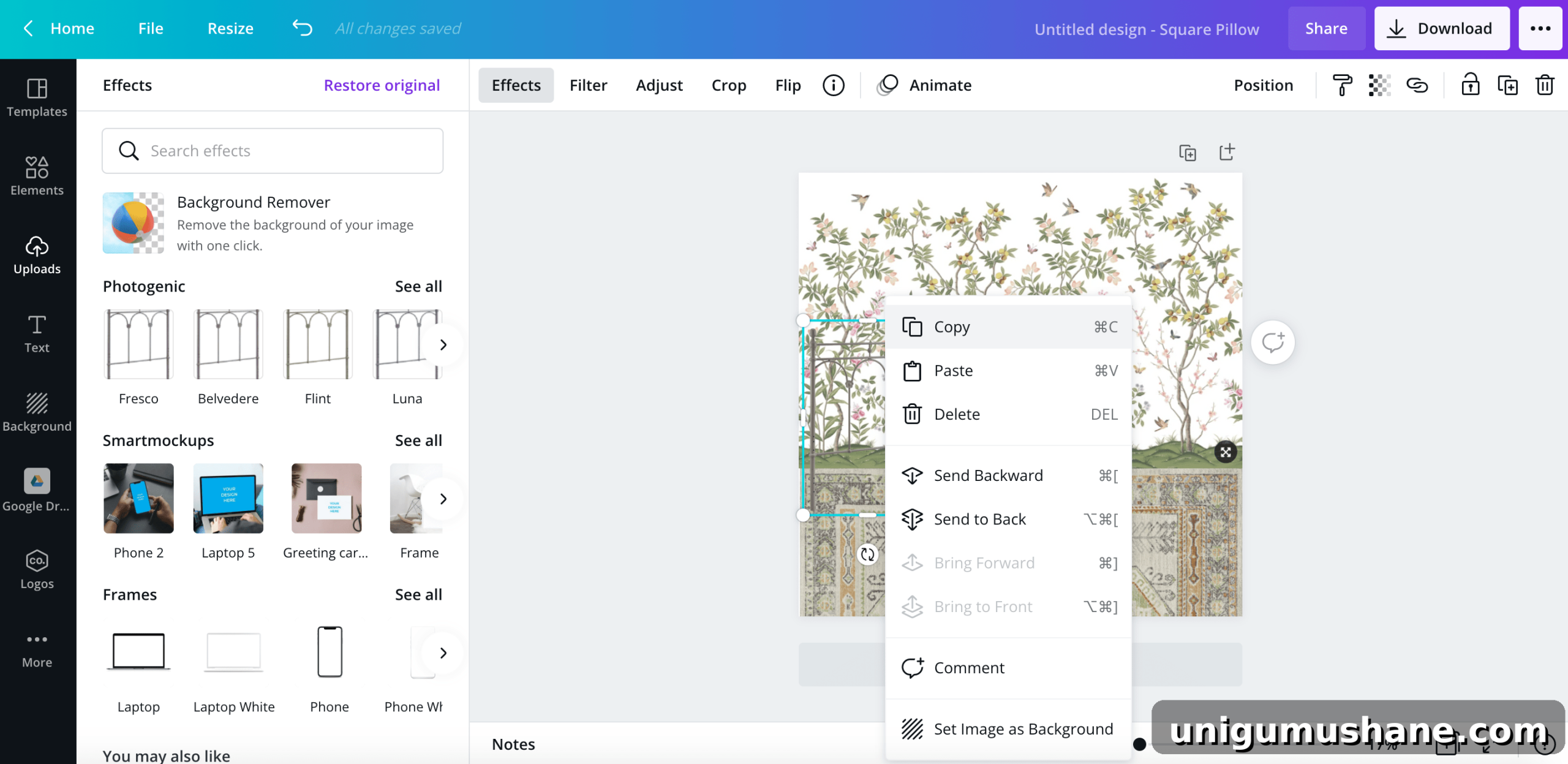
- To duplicate an item: copy and paste the image to create additional instances for pattern or balance.
- Flip images via the “Flip” option to mirror items horizontally or vertically for better composition.
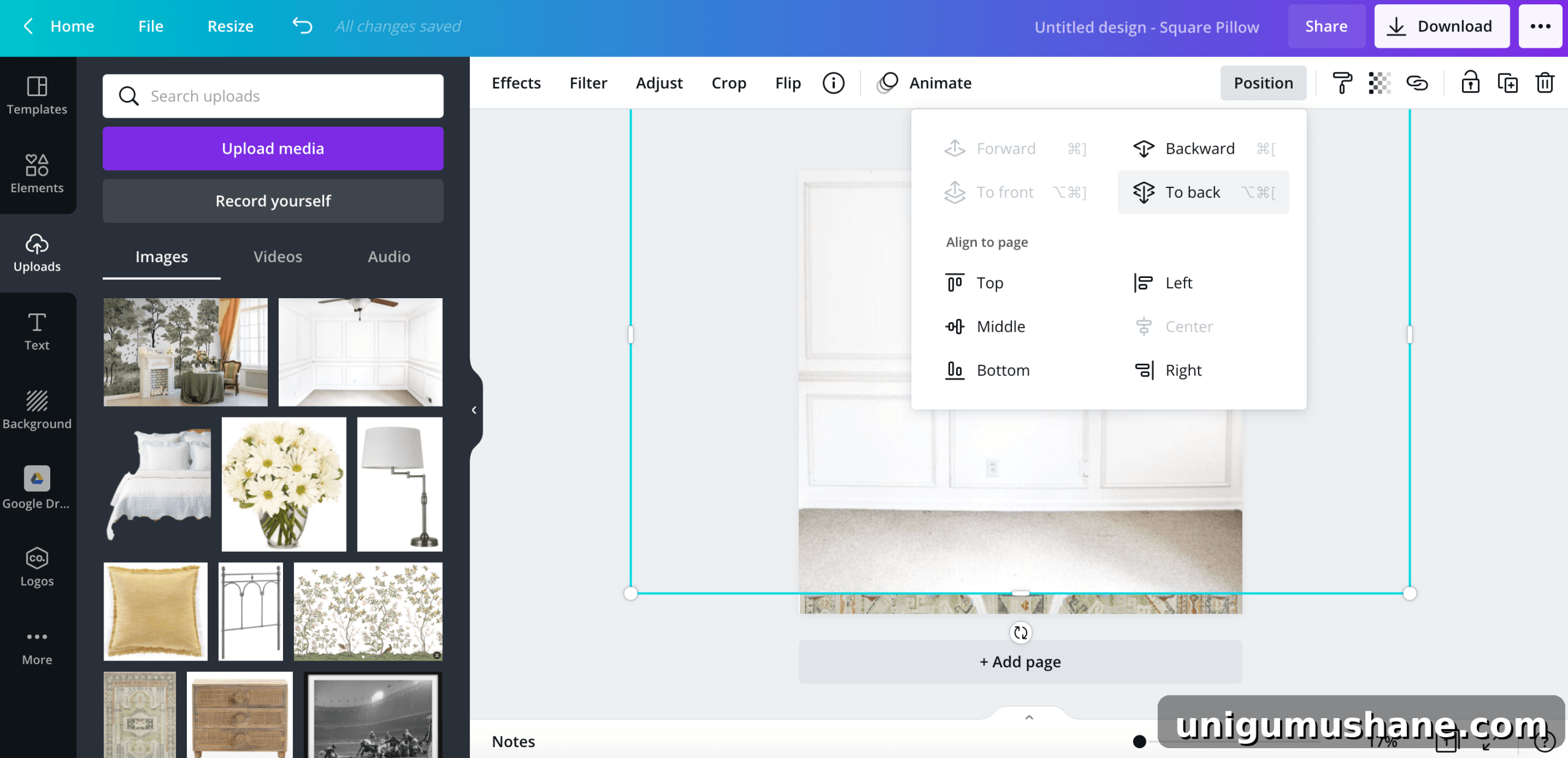
- Layer images using “Position” to move elements forward or backward and build depth.
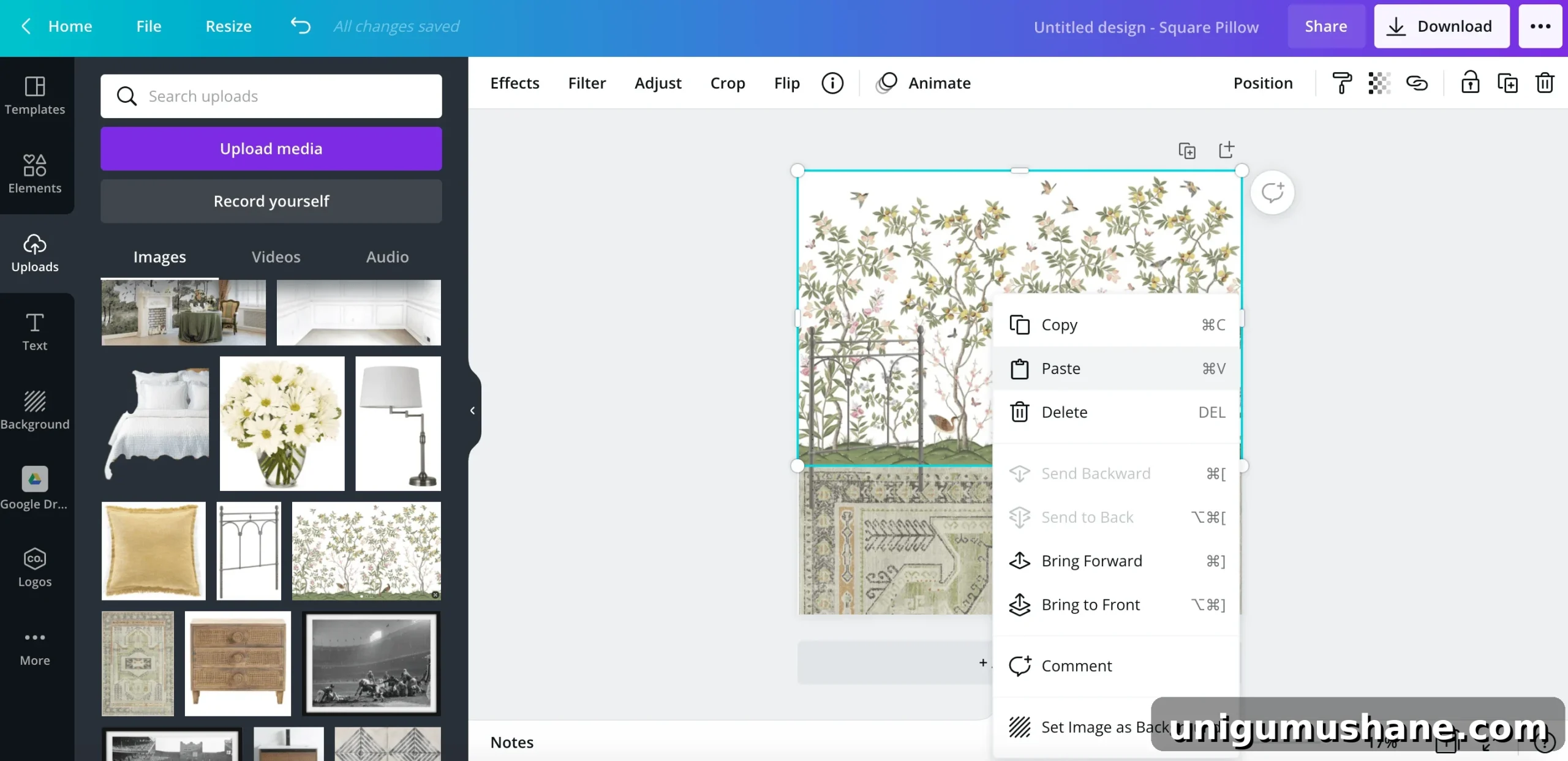
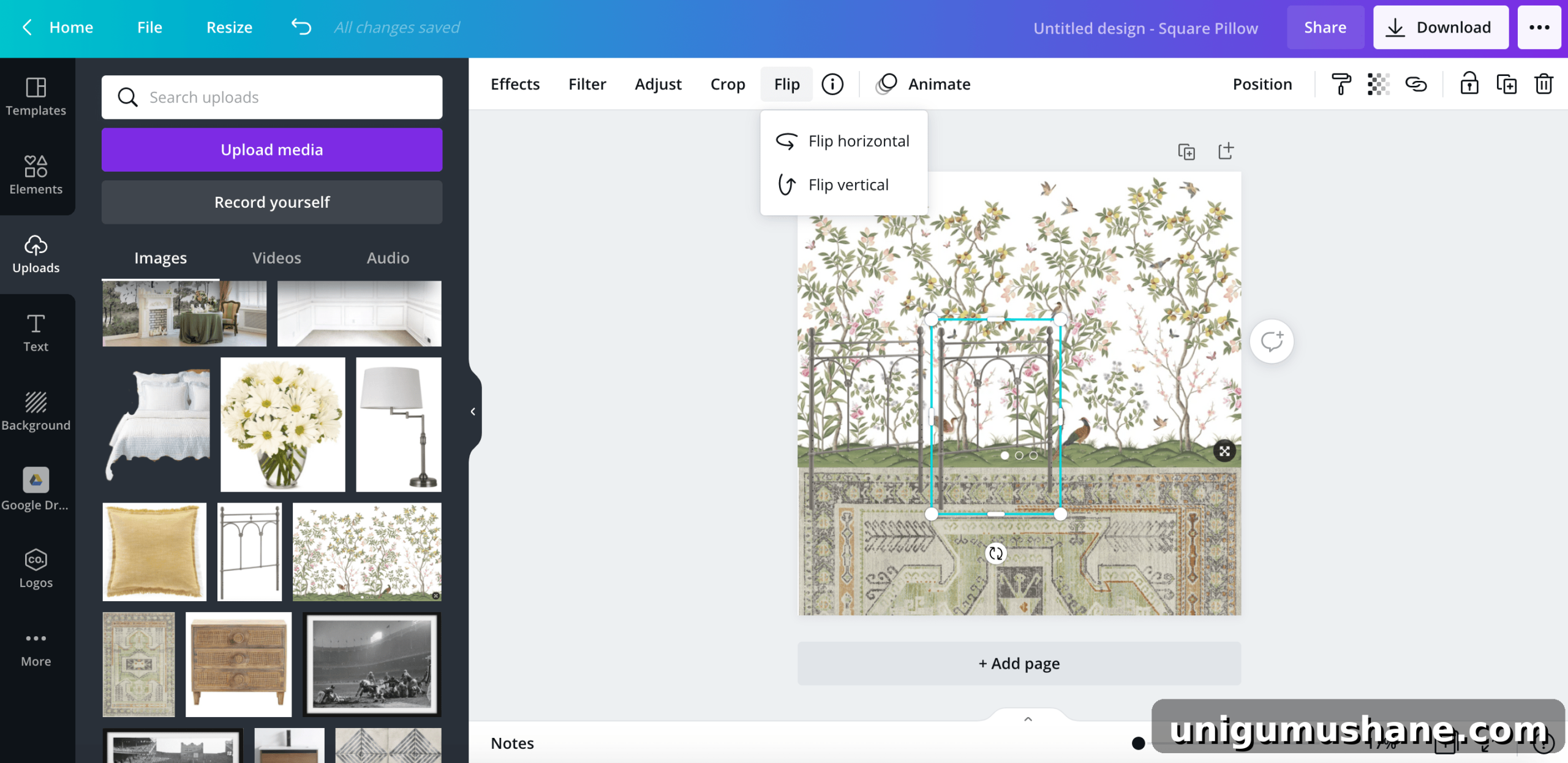
- To preview the design in the actual room: upload a photo of your room, then send that image to the back so your mood board elements sit on top and you can see how they work together.
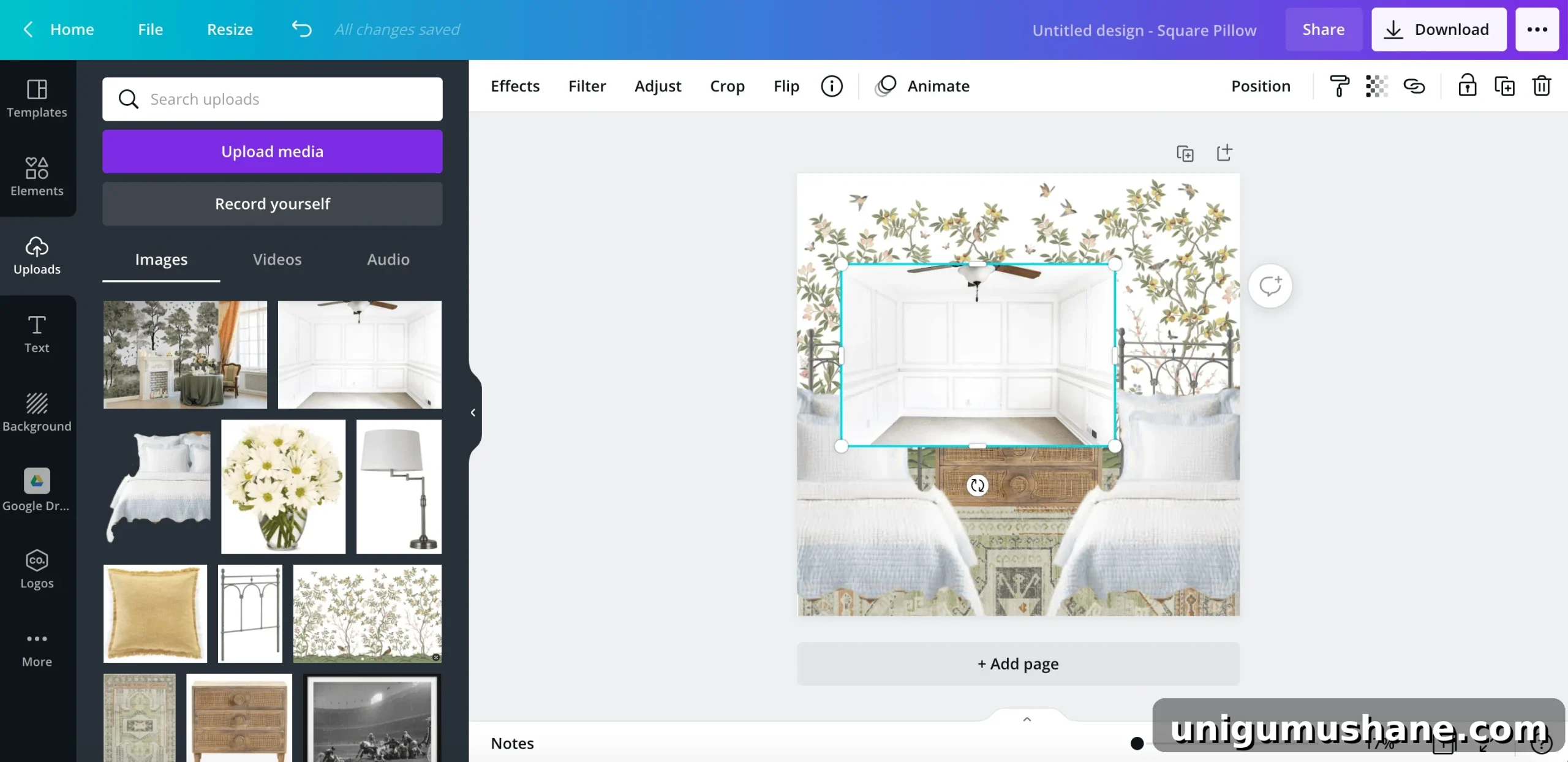
That’s it—keep experimenting with different combinations until the board reflects the look and feel you want for the room. The process is fast, inexpensive, and will save you time and money when you start buying pieces and scheduling work.
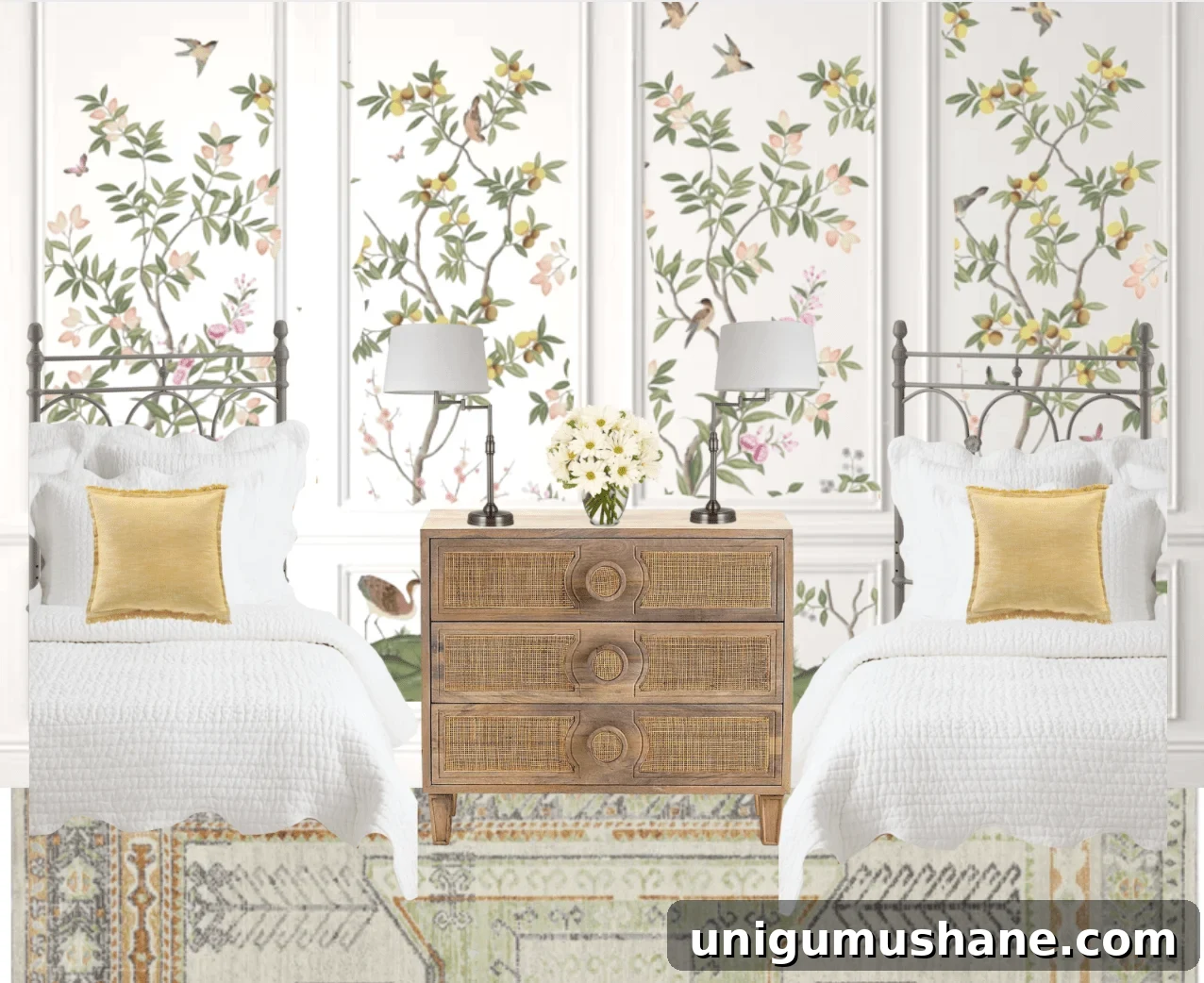
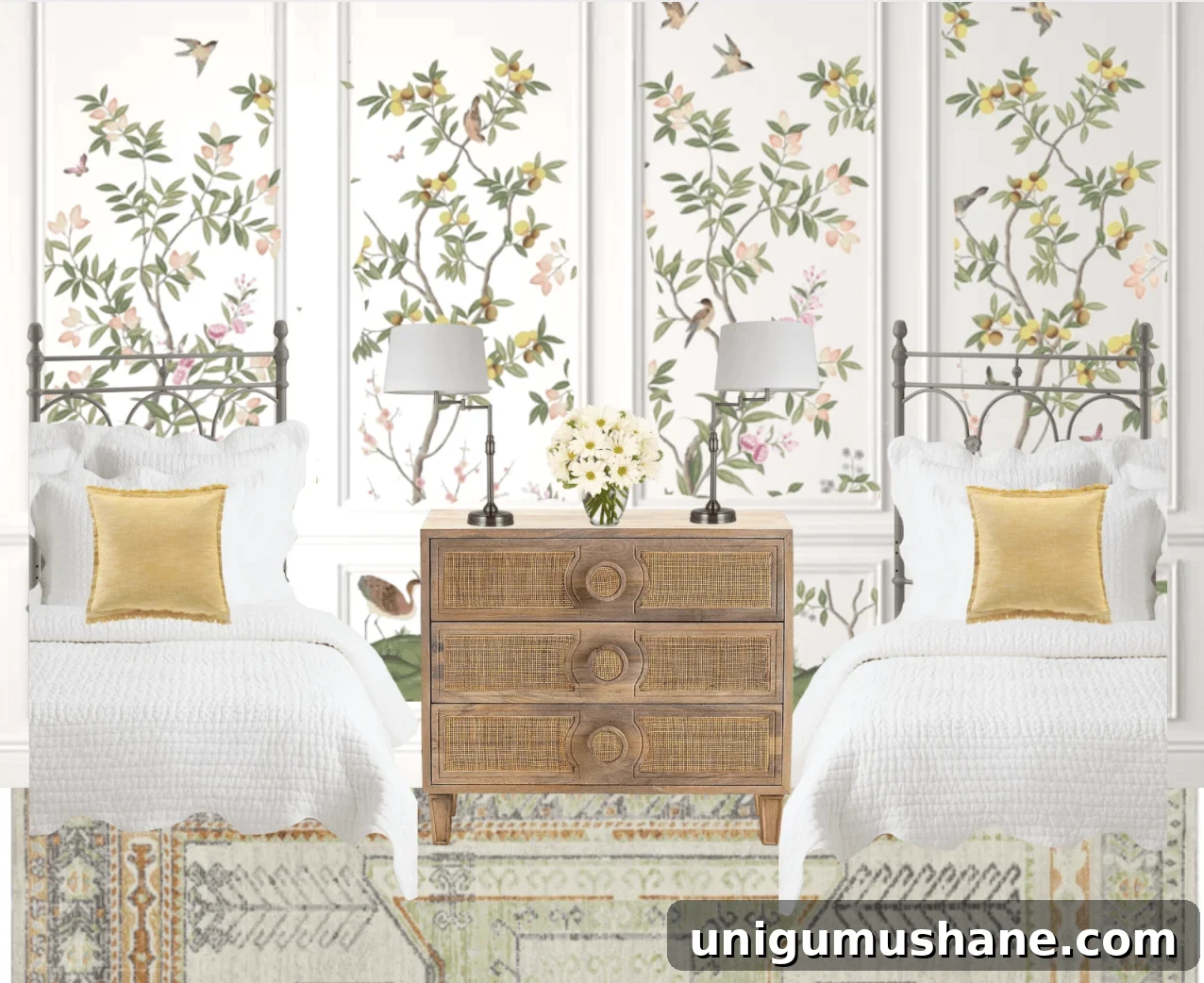
Wallpaper | Rug | Dresser | Headboards | Quilts | Lamps | Pillows
We now have a plan for Regan’s daughter’s bedroom: the crib is being replaced by twin beds and a playful wallpaper—bittersweet, but the new layout will be perfect for sleepovers and growing up. I’ll share more details as the makeover progresses.
If there are particular decorating details you’ve wondered about, let me know—I plan to share more tips and behind-the-scenes ideas regularly.
If you want to save this post for later, pin the images to your inspiration board.
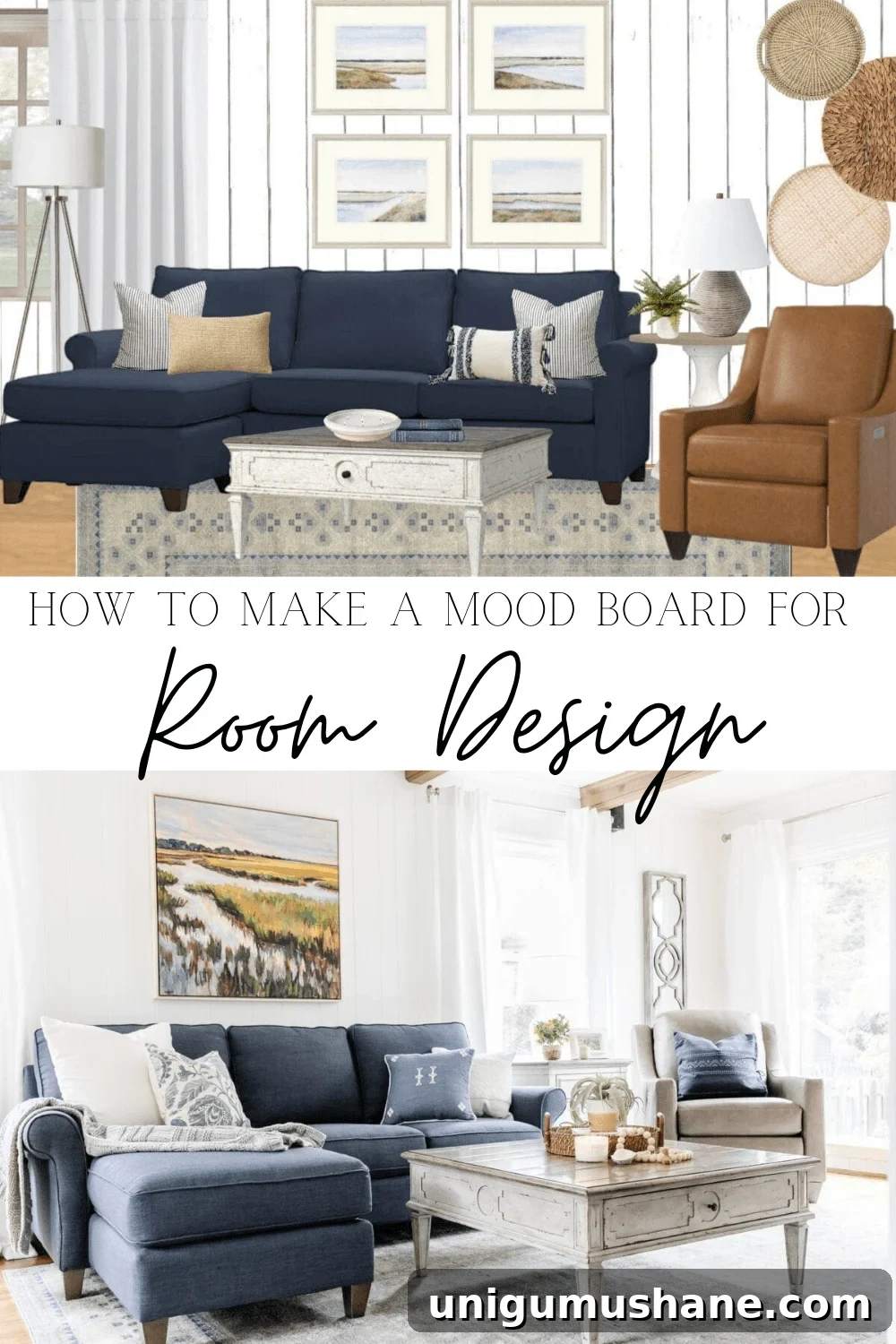
(See the living room makeover for full details.)

Related Posts
- How to Transition Away from Farmhouse Style
- 15 Ways to Transform Your Entire House with Just Paint
- 40 Ways to Improve Your Home for Under $100
- How to Choose the Perfect Paint Color for Your Home Every Time
- How to Find Your Decorating Style